Start with the moment you want to capture.
A thought on a walk needs a clear record button. A lecture needs a recording you can identify tomorrow. An interview needs audio you can export and keep. These are different needs, and none necessarily calls for a complicated editing studio.
Look for a straightforward way to start and stop, a visible recording state, playback, useful names, and an export option. Then consider the extra you actually need: searchable text, backup, or protection against accidental deletion.
For a broader shortlist, see our iPhone recorder comparison. For the detailed everyday choice, read REC vs Voice Memos.
Apple Voice Memos or OnePress Rec?
Try Apple Voice Memos first if you only need basic recording. It may already do everything you want. On supported devices and languages, it also offers transcription and search within transcripts. See Apple's transcription guide for current availability.
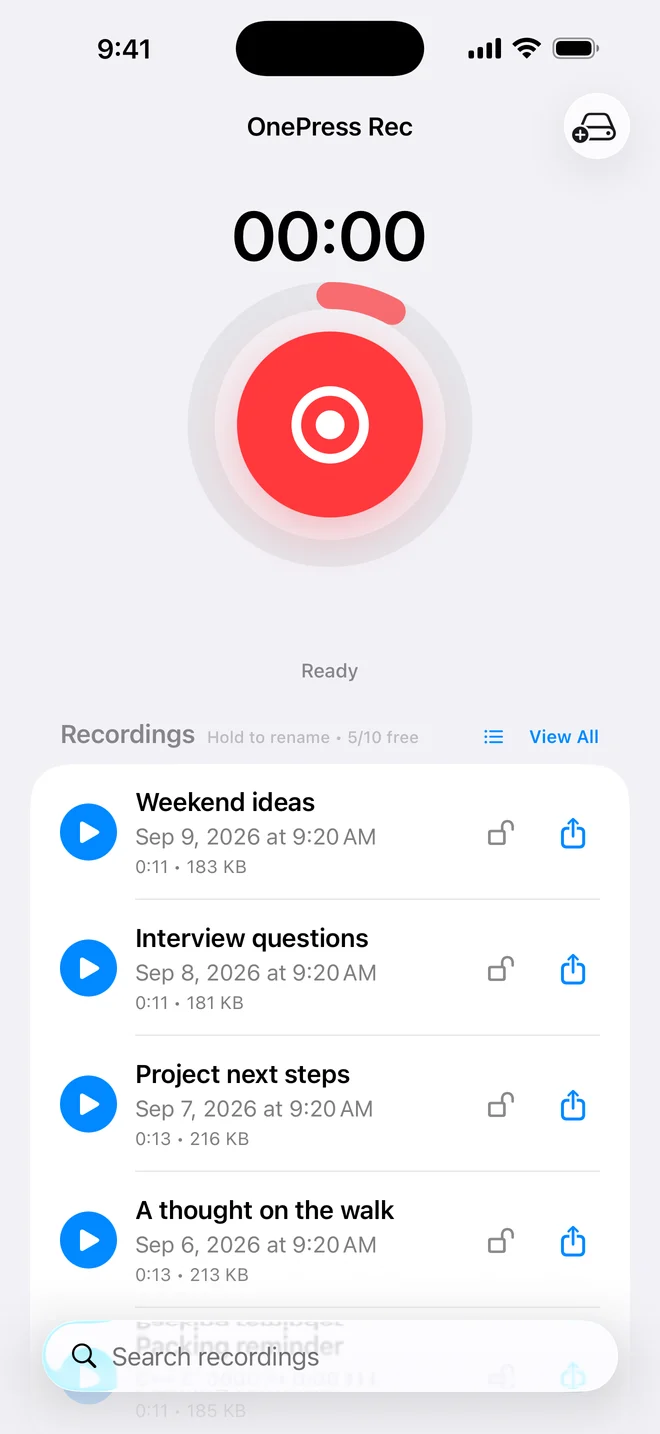
Consider OnePress Rec if you prefer its focused library and lifetime upgrade. Rec combines a simple recording screen with sorting by name, date, or length. Free includes two successful manual transcriptions per rolling seven days and search of saved transcripts. Optional Pro adds unlimited and automatic transcription, App Lock, an estimated recording place and Files backup.
This is a guide from Rec's developer, not an independent ranking. Rec is not a multitrack audio editor or a phone-call recorder. Free recording locks protect against deletion, not playback. Optional Pro App Lock protects access to the app using device-owner authentication; exported copies remain outside it.
A recorder should help you find the useful sentence.
Imagine naming a recording "Monday meeting" and later remembering only "delivery on Thursday." A filename search cannot connect those two things. A completed transcript can.
In Rec, open a saved recording, choose its transcript language, and transcribe it using the free allowance or Pro. Once the transcript is saved, library search can match words inside it. Try a distinctive name or word rather than a long sentence. Follow the spoken-word search walkthrough.
Transcription is not guaranteed to get every word right. Check important details against the original audio. Availability depends on the language, device and Apple Speech service; some transcription requires an internet connection. Choosing the right language matters more than guessing from your phone's interface language.
What is free, and what needs Pro?
OnePress Rec is free to download and saves up to 10 recordings without a purchase. You can record, play, rename, share, and use the full library. There is no OnePress account to create and no in-app advertising.
Lifetime Pro is an optional one-time in-app purchase, not a subscription. It removes the saved-recording count limit, subject to available storage, and adds unlimited and automatic transcription, App Lock, optional location, secure unlock and backup. Check the App Store or in-app purchase screen for your local price.
Audio is saved on your device. OnePress does not receive recordings on its servers. Apple Speech and any cloud provider you select in Files have their own role when you use those services. Read the privacy details and backup walkthrough before relying on a second copy.
Try a 30-second recording before an important one.
- Check compatibility on the App Store. Checked on 29 September 2026: the live Rec 1.3 release requires iOS/iPadOS 16 or later.
- Record in the room you will actually use. Keep the microphone clear and the phone close enough to capture speech.
- Play it back with headphones. Listen for quiet voices, handling noise and competing sounds.
- Give it a meaningful name, then share a copy to a destination you can open.
- Before recording other people, get their permission and follow the rules of the venue.
A simple recorder is useful when it fits this whole routine, not just when its record button looks good. Test the free workflow first, then decide whether searchable words and backup would earn their place in your day.